July 27th, 2026 at 2:00 PM
YouTube MarketingThis Motionvid.AI Review is for anybody who wants better looking videos without having to become a full time video editor. MotionVid.AI takes a text prompt, or a reference image, and turns it into motion graphics, short explainer clips, animated infographics, and video scenes. The big promise is simple: describe what you need, customize it for your brand, and get a polished visual fast.
After getting inside the software and creating examples for my own class content, I can say this is one of those AI tools that I would actually use. It is especially good for creators making talking head content, explainers, tutorials, social media posts, and videos where a well placed visual can help explain a key point.
MotionVid.AI was founded in December 2024 in Larnaca, Cyprus. At the time covered here, it reported more than 50,000 monthly visitors and held a 4.2 star AppSumo rating across 55 reviews. Those are encouraging signals, but I still recommend judging this tool by the workflow and output you personally need.
At its core, MotionVid.AI is an AI motion and video creation suite. It is designed to help you create animated visual assets without building every scene manually on a timeline.
The main creative options include:
Motion graphics generated from a written description.
Explainer videos for lessons, products, services, and marketing concepts.
Infographic style videos that can make numbers, processes, and comparisons easier to understand.
Single graphic creation for standalone visual assets.
Image generation using several available AI models.
Video editing for uploaded footage and generated assets.
Multi-scene projects with narration for longer, more structured pieces.
Templates for titles, explainers, timelines, mockups, and more.
The practical value here is not that it replaces every professional editing platform. The value is that it handles the motion graphic moments that usually slow creators down. Instead of stopping to design a visual from scratch, I can generate a targeted asset, export it, and place it into my existing video.
The dashboard is laid out around creation choices rather than complicated editing jargon. From the home area, I can select formats, choose the project type, and start with a prompt. There are options for multi-scene content with narration, including a 16:9 format and a 15-second setting.
I also found a dedicated editor section that opens an AI chat experience. That is useful if I want help shaping the project inside the platform instead of bouncing between tools.
There is a broad range of styles available, including Apple and Vox inspired looks. These styles matter because many creators see polished motion graphics online but do not know how to recreate the visual language. MotionVid.AI gives a starting point that can be customized instead of asking me to begin from a blank canvas.
For people building a repeatable publishing system, I would pair this with a solid content creation workflow Kanban system. The AI can speed up visual production, but the workflow is what keeps those assets organized, approved, and published.
Here is the workflow I recommend most: record the video first. Finish your talking head video, lesson, or tutorial exactly as you normally would. Then identify the places where a motion graphic would make the message clearer.
This method is a lot easier than trying to stop recording, create a visual, return to recording, and keep repeating that process. You preserve your natural delivery while still adding graphics that make the finished content more engaging.
My process would look like this:
Record the full video. Focus on delivering the message clearly.
Review the written captions or script from that recording. Identify moments where a visual metaphor, headline, process, or data point would help.
Use an AI assistant. Upload the text to ChatGPT or Claude and ask for timestamped motion graphic ideas based on the content.
Turn the strongest ideas into prompts. Keep each prompt focused on one visual message.
Generate the graphic in MotionVid.AI. Select an appropriate style, duration, orientation, and template.
Export and place the asset into the final edit. Use it to support the point, not distract from it.
That is the main reason this Motionvid.AI Review is positive. The software fits naturally into how many creators already work. It does not force me to create an entire project from zero. It lets me enhance the content I have already recorded.
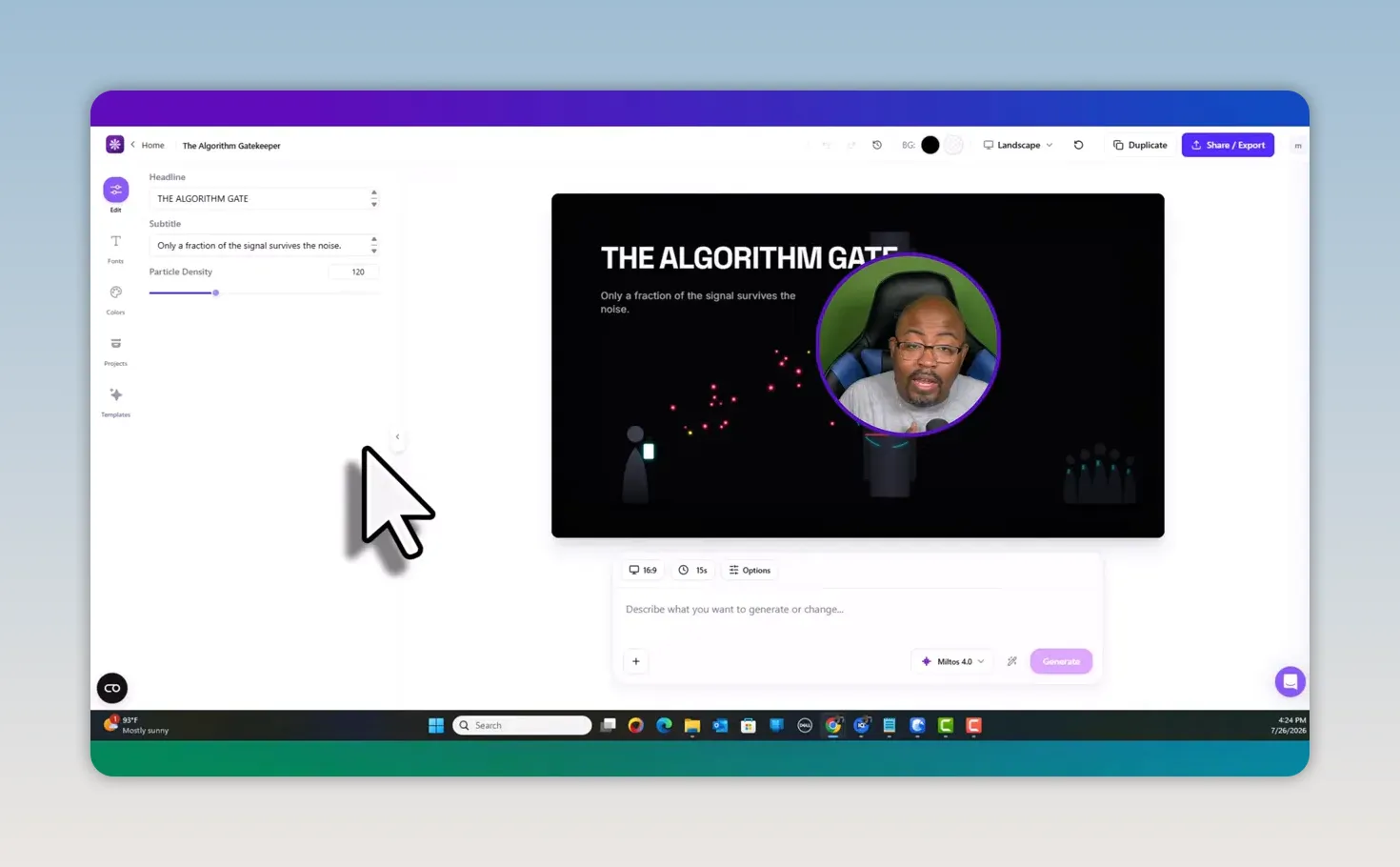
I created visuals around the idea of the “algorithm gate,” meaning that only a fraction of the content signal gets through the noise created by platform algorithms. A simple prompt produced an animated visual with the headline “The Algorithm Gate” and a graphic representing filtered signals.
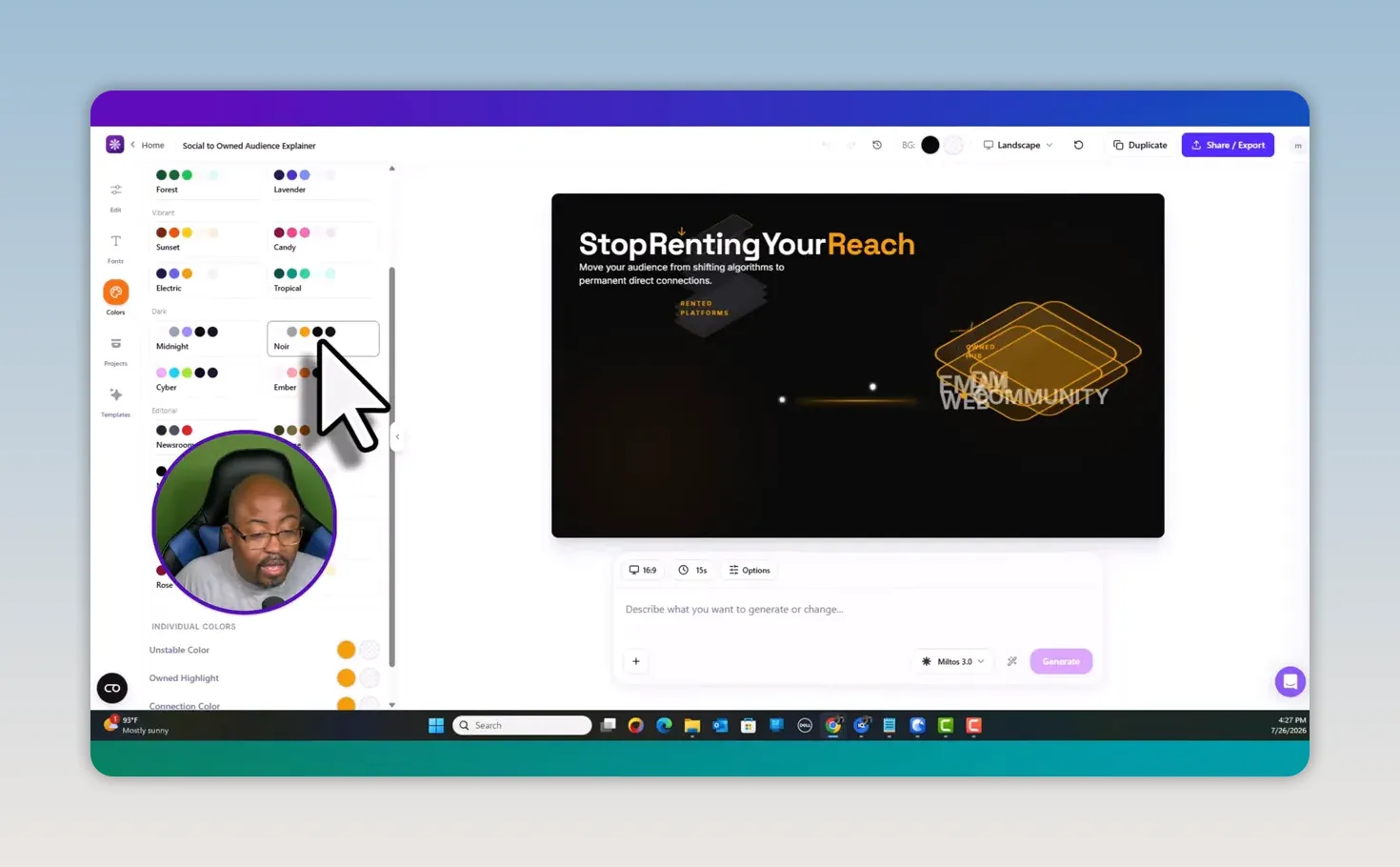
I also created an explainer around the message “Stop renting your reach,” which communicates the importance of building direct connections instead of relying entirely on constantly changing algorithms. That type of concept is perfect for MotionVid.AI because it is abstract. A motion graphic can make the idea land faster than a plain talking head clip.
When I generated the visual, I could adjust headline text, subtitles, fonts, and colors. I could also work with the text color palette, including colors for the main text, highlights, connection elements, and unstable elements.
One thing to remember is that some background results may need to be defined in the prompt itself. The color controls shown are useful for text and visual elements, but if I want a very particular branded background, I would clearly state it in the prompt rather than assume the color picker will change every aspect of the scene.
Templates are one of the strongest parts of this product. MotionVid.AI includes categories for explainers, process timelines, mockups, titles, motion graphics, and other visual formats. I can browse a template, choose one that matches the job, then tailor it to my own topic and branding.
This is important because a good template reduces the amount of prompting required. Instead of trying to explain every animation decision in detail, I can begin with a structure that already makes sense. For example:
A process timeline works well for a step by step tutorial.
A mockup template is useful for showing a product, app, or offer.
An explainer template gives abstract ideas a visual form.
A title animation can quickly improve a lesson intro or section break.
A single graphic can become a social asset or visual insert.
The template library also makes MotionVid.AI more beginner friendly. If you are just getting started with AI visuals, you do not need to invent a full art direction every time. Pick a format that matches the message, customize it, and move forward.
If content repurposing is a bigger part of your strategy, my guide to repurposing content for business growth can help you build a wider system around these kinds of visual assets.
MotionVid.AI is not limited to motion video. It also includes image generation options. The interface includes models such as Nano Banana, Cinema Studio image, and ChatGPT image. That can be useful if I need professional style headshots, studio images, reference visuals, or graphics for a project.
The image section allows reference image uploads, background removal, background changes, and character-related options. I can also upload more than one reference image. That is a useful feature when I need the output to follow a visual direction, product look, or brand style.
For someone who does not have a separate ChatGPT image subscription, having image tools in the same workspace may reduce tool switching. Still, higher powered AI models use more credits, so I would not select the biggest model by default for every job.
Pricing is where I recommend slowing down and looking at your actual production needs. The offer demonstrated included a one-time lifetime deal beginning at $49, with 125 credits and 25 exports per month. Higher tiers scaled up to $389, with 1,000 credits, 300 exports, and 4K output.
In the account shown, 14 exports had used only 31 credits from the 125-credit allocation. That is encouraging for basic motion graphic work, but usage will vary based on the model, project size, output quality, and what you generate.
Additional credit packs were also available. One example was a $15 pack providing 400 more credits and 40 more video exports.
The biggest lesson from this Motionvid.AI Review is to think about credits before you buy. The more advanced the AI model, the more credits it can consume. You do not want to use expensive generation options for simple title cards that a lower-cost option can handle just fine.
|
It is fast. I can turn a focused prompt into a usable visual asset in seconds.
It is built for non-editors. Templates and AI generation reduce the need for deep animation skills.
It works well with talking head content. Create your main video first, then add visual support afterward.
It has flexible output types. Motion graphics, explainers, images, templates, and editing tools are all in one platform.
It supports customization. Text, fonts, color palettes, styles, and templates can be adjusted for a brand.
Extra credits are available. That gives active creators a way to expand usage when needed.
Credits require attention. Advanced models can raise the cost of creating content.
Monthly export limits matter. Estimate how many assets you produce each month before choosing a plan.
Prompt quality still matters. Strong results require clear descriptions and a specific creative direction.
It is best as part of a workflow. I would use it to enhance videos, not necessarily as the only editing system for every type of project.
Pricing and lifetime deal availability can change. Always verify current terms before purchasing.
I think MotionVid.AI is a strong fit for content creators, YouTubers, marketers, coaches, educators, and small business owners who need frequent visual assets but do not want to spend hours inside traditional editing software.
It is especially useful if you create:
Educational videos with concepts that need visual explanation.
Social media content that needs a stronger hook.
Product walkthroughs and feature explainers.
Marketing videos with calls to action and brand storytelling.
Talking head videos that need animated breaks and visual proof points.
Process videos, timelines, and infographic content.
It may be less ideal for creators who need frame by frame control over every animation detail or who already have a high-end motion design workflow. But for the everyday creator who needs good visual assets quickly, it can save a whole lot of time.
My final take in this Motionvid.AI Review is that this is a very solid creator tool, especially for explainer-style content. The ability to create motion graphics from text, use templates, customize colors and text, generate images, and work with video assets makes it a practical all-in-one option.
I would not buy it just because it is an AI deal. I would buy it if I regularly need motion graphics that explain, emphasize, or elevate my content. If that is you, MotionVid.AI can help you create a more polished final product without having to hire an animator for every small visual.
The smartest approach is to keep your content process simple: record your core video, use AI to identify visual opportunities, generate only the motion graphics you truly need, then place them where they strengthen the message. That is how I would stretch both the software and the credits.
MotionVid.AI is used to create AI-generated motion graphics, explainer videos, animated infographics, single graphics, images, and visual assets for content marketing and video production.
Yes. The platform is designed for creators who want polished motion visuals without advanced editing or animation skills. Templates, prompts, and AI generation provide a simpler starting point.
I recommend recording the full video first, reviewing the written content for key points, generating motion graphic ideas with an AI assistant, then creating and inserting the finished graphics during editing.
Yes. MotionVid.AI includes image generation options, reference image uploads, background tools, and several AI image model choices.
Credits are used for generation, and higher-level AI models can consume more credits. Export allowances also depend on the plan, so it is important to choose a tier that fits the amount and quality of content you plan to create.
Yes. Explainer videos are one of the strongest use cases because the software offers prompt generation, customizable text and colors, templates, and motion graphic styles that help turn an abstract message into a visual story.
Now Here is the free prompt for you to use with this software:
Act as an expert motion graphics designer and AI video consultant. Your task is to analyze the provided transcript and identify optimal moments to insert AI-generated motion graphics that enhance viewer engagement and clarify complex information.
For each identified segment, provide: 1. The exact timestamp or context from the transcript. 2. A brief description of the recommended visual concept. 3. A highly detailed, descriptive prompt optimized for MotionVid.ai to generate the graphic. Ensure the prompts focus on visual style, motion, and composition suitable for the platform.
The target platform for these assets is MotionVid.ai. Please tailor the visual complexity and aspect ratio suggestions to align with the capabilities of this specific tool.